


How to Update an Ikagoo VW or Audi Digital Instrument Cluster: Online and USB Methods
VW & Audi Digital Cluster Firmware Update Guide: Online and USB Methods

This guide covers VW digital instrument cluster updates and Audi digital instrument cluster firmware updates for supported Ikagoo original-style retrofit clusters. It explains the two support routes our team actually uses: an online / OTA update through a phone hotspot, and a USB firmware update using the exact package assigned to the installed cluster version after the version number has been checked on the unit.
Factory support boundary: this page is written for Ikagoo upgraded clusters and their assigned firmware routes. It is not a general dealer-level OEM software page for every factory Audi Virtual Cockpit or Volkswagen Digital Cockpit on the market. The wording here follows the support workflow our team actually uses when a buyer asks whether the cluster should be updated online or with a version-matched USB package.
Which VW and Audi Digital Instrument Clusters This Firmware Update Guide Applies To
Volkswagen Digital Cockpit Upgrades
This route fits Ikagoo-style Volkswagen cluster upgrades where the original analogue gauge set has already been replaced with a full digital cluster. Typical buyer questions involve Tiguan, Lavida, Passat, Golf, Jetta, and other Volkswagen platform-specific retrofits.
Audi Virtual Cockpit Style Upgrades
This route also applies to Ikagoo-supported Audi cluster conversions where the buyer needs post-installation firmware support, smartphone route updates, or version-based troubleshooting. Typical search intent includes Audi A3, A4, Q3, Q5, Q7, and related cockpit upgrades.
Important boundary: this page is about upgrading and maintaining an Ikagoo digital instrument cluster after it has been installed. It is not a general OEM used-cluster immobilizer guide, and it is not written for every factory Audi or Volkswagen dealer software route.
Why There Are Two Update Methods
Online Update
Online update is the cleaner route when the cluster build supports it. The cluster connects through your phone hotspot, downloads the correct update package, and finishes the process on the unit itself. This is usually the faster option when the installed software version is new enough.
USB Update
USB update remains important because not every build supports online update. It is also the safer fallback when the car is in a workshop environment with limited network stability, or when Ikagoo has issued a package for a very specific cluster version or recovery route.
Check the Cluster Version Before You Start
Before attempting any firmware change, open the cluster settings and locate the version information screen. The key detail is the date code shown in the app version line. On the clusters covered by this route, the first visible sequence after the app name follows the format month-day-year.

This real version-information screen is the reference point for deciding whether the cluster can use the online update route.
Example version line:
APP: May 6 2025 23:02:56 f9859537 C33 SPORT
Online update requirement: only builds dated after April 16, 2025 support the online update route covered in this guide.
If you are unsure whether your version date is new enough, do not guess. Send the version screen and cluster photo to Ikagoo before you try again. That is faster than forcing a wrong update path.
What to Prepare Before Any Cluster Update
- Use a stable vehicle power state. Do not begin if the battery is weak or the ignition route is unstable.
- Make sure you know whether your cluster is on an online-capable build or needs the USB route.
- For online update, prepare a reliable phone hotspot and enough mobile data.
- For USB update, use the exact firmware package provided for your cluster route. Do not mix files from another dashboard, another platform, or another screen logic.
- Leave enough uninterrupted time. A rushed update is where users create preventable failures.
- If your unit uses a C33 smartphone route, disable the phone-link function before starting the online update.
VW & Audi Digital Instrument Cluster Online Update (OTA)
The online route is designed for supported cluster builds that can download firmware directly after connecting to a phone hotspot. On supported versions, this is usually the most convenient way to keep the cluster current without using a USB flash drive.
Direct rule from the supported route: the cluster reads the version date from the APP line in settings, and only units dated after April 16, 2025 support this online method. If the cluster is older than that, stop and switch to the USB route instead of forcing a hotspot update.

Android-phone hotspot route for an online cluster update.

iPhone hotspot route for the same online update logic.
Confirm the version first
Do not start with the hotspot until you have confirmed that the cluster build date is newer than April 16, 2025. If the version does not meet that threshold, use the USB route instead of forcing the online path.
Disable phone-link on C33 variants
If your cluster uses the C33 smartphone route, switch off the phone interconnection function before starting. This matters because the update should run through the hotspot route cleanly, without competing phone-link activity in the background.
Connect the cluster to your phone hotspot
Open the hotspot on your Android phone or iPhone, then let the cluster connect and begin the firmware download. The menu wording can vary slightly by build, but the logic is the same: connect first, then let the cluster pull the update package from the supported route. This is not screen mirroring. The cluster downloads its own firmware once the network route is ready.
Wait without touching the unit
The update process usually takes around 5 to 6 minutes. During that time, do not press buttons, do not switch functions, and do not cut vehicle power. A cluster that loses power mid-update is much harder to recover than one that simply waits for the process to finish.
Reboot in the correct order
When the cluster shows the update-complete prompt, press any steering wheel button once to restart the cluster. Then switch the vehicle off, lock it for a few minutes, and start the car again so the cluster can boot back into its normal state.
Android Phone Online Update Video
This example shows the Android-phone hotspot route. Use it only after the cluster version check confirms that online update is supported, and turn off the C33 phone-link route first.
iPhone Online Update Video
This example shows the iPhone hotspot route. The same power rule still applies: once the download and update start, do not interrupt the process or switch the ignition route.
What the Finished Restart Sequence Looks Like
After the update-complete prompt appears, press any steering-wheel button once, let the cluster reboot, switch the vehicle off, lock it for a few minutes, then restart and verify normal operation. That final restart order is part of the procedure, not an optional extra.
VW & Audi Digital Instrument Cluster USB Firmware Update
The USB route is still essential for clusters that are not yet on an online-capable build, or for special support cases where Ikagoo has assigned a firmware package to a specific hardware route. The key rule is simple: use only the exact USB package prepared for your own cluster version.
This route has several failure points that buyers often miss. The filename, extraction folder, root-directory layout, and platform family all matter. PQ and MQB update packages are not interchangeable, even if the files look similar at first glance.

Real USB update screen reference for the cluster firmware flashing route.
Check the current version before you flash anything
Open the cluster settings and confirm the current version information first. Do not treat USB update as a blind shortcut. The support package must match the installed board route, software family, and target version logic already on the cluster.
Follow the absolute file-name rule: gor.tar means exactly gor.tar
The bootloader checks the update file by exact string match. If the assigned update file must be named gor.tar, then it must stay exactly gor.tar. One extra character or one missing character can make the cluster ignore the package completely. If your computer creates duplicates such as gor.tar (1), delete the bracketed suffix and restore the original name before using the file.
Extract the package correctly and place the real update file in the root directory
If the support package arrives as a compressed folder, extract it on the computer first and locate the actual update file. That validated file must be placed directly in the root directory of the USB drive, not inside an extra folder. If your operating system shows a full suffix such as gor.tar.bz2, do not guess. First confirm whether you are still looking at the compressed archive or the final update file, then keep only the correct support file in the required root-level position.
Do not mix PQ and MQB update packages
PQ and MQB files must never be cross-used. They may look similar by name, but they are not the same support route. If you are not sure which platform your cluster belongs to, stop and confirm before you insert the USB drive.
Power on the car and insert the USB drive into the cluster upgrade port
With the vehicle powered on, plug the USB drive into the cluster upgrade USB port on the cluster harness and let the system begin the update cycle. Once the update starts, do not remove the drive and do not interrupt the power route because the screen appears quiet or dark for a moment.
Expect a roughly 3-minute USB cycle and several black screens
The full USB upgrade process is roughly 3 minutes. During that time, the cluster may black out several times. On this route, those black screens are treated as normal update behavior. Do not press buttons, do not switch off the vehicle, and do not assume the unit has failed just because the display temporarily goes dark.
Remove the USB drive, lock the vehicle for 3 minutes, then restart
When the USB update completes, switch the ignition off, remove the USB drive, and lock the vehicle for about 3 minutes. Then start the car again and confirm that the cluster boots normally. If the unit does not recover cleanly, stop and contact Ikagoo before attempting a second flash.
USB Update Tutorial Video
This video is the visual reference for the USB route. Match it with the file-handling rules above: correct package, correct extraction, correct root directory, and no PQ/MQB mix-up.
USB Update Safety Notes
Do not judge the file package by appearance alone. A common support failure happens when the archive still contains an extra compressed layer, the update file is left in the wrong folder, or the user places the package on the drive without checking the exact visible file name.
Another common failure is a duplicate filename such as gor.tar (1), or a cross-platform mistake between PQ and MQB packages.
Version Date Still Matters
The version-date check remains important even when the user intends to update by USB. If the cluster version and support route are not fully identified first, a seemingly correct USB flash can still become the wrong recovery path.
USB update is not the “old” or “low-end” route. It is often the correct support path when a version gate or recovery condition makes online update inappropriate.
What to Check After the Update
Normal Boot
Make sure the cluster boots normally after the restart sequence and does not remain on a blank or frozen screen.
Basic Vehicle Data
Confirm speed, warning messages, indicator logic, and menu response behave normally again after the update.
Phone and Media Routes
If your cluster uses smartphone projection or a linked media route, confirm those functions behave as expected after the firmware change.
Common Mistakes That Create Preventable Cluster Problems
- Trying the online update route on a version older than April 16, 2025.
- Leaving the C33 phone-link route active while attempting an online update.
- Using a USB package meant for another Volkswagen or Audi cluster platform.
- Interrupting the process because the user thinks the unit is taking too long.
- Switching off ignition or cutting power during the update window.
- Repeating the update immediately after a failed reboot instead of checking with support first.
When to Contact Ikagoo Before You Try Again
You should stop and contact support if any of the following applies:
- You cannot confirm the cluster version date clearly.
- You are not sure whether your route is Volkswagen-specific or Audi-specific.
- The cluster update was interrupted or the display did not reboot normally.
- You are trying to recover smartphone projection, map display, or other linked route behavior after an update.
- You received files from someone else and cannot verify whether they match your installed cluster.
Need Software Upgrade Package Support?
For selected supported Volkswagen and Audi digital instrument cluster systems, FixMyDash provides compatibility review and access to the latest available compatible software upgrade package where supported.
Available support follows the purchased 1-year or 2-year service option. This is a software upgrade package support route, not a hardware repair route.
Service boundary: it does not guarantee resolution of damaged hardware, wiring faults, incorrect installation, communication faults, or unrelated vehicle problems.
Related VW and Audi Cluster Products on Ikagoo
Buyers who arrive on this update page are often still comparing hardware routes. The safest path is to match the dashboard generation and product route before you place the order, then use the correct update logic after installation.
These links stay inside Ikagoo and make it easier for buyers to compare supported years, dashboard styles, and cluster families before they commit.

VW 12.3 Digital Cluster Upgrade for OEM 8" (320/790/310)
A strong match for Volkswagen buyers comparing original-style cluster upgrades across several dashboard routes.
View VW 12.3 Digital Cluster
VW Tiguan 2017-2022 Digital Cluster LCD Virtual Cockpit
A direct route for buyers working with the later Tiguan MQB dashboard and related installation or update questions.
View VW Tiguan Digital Cluster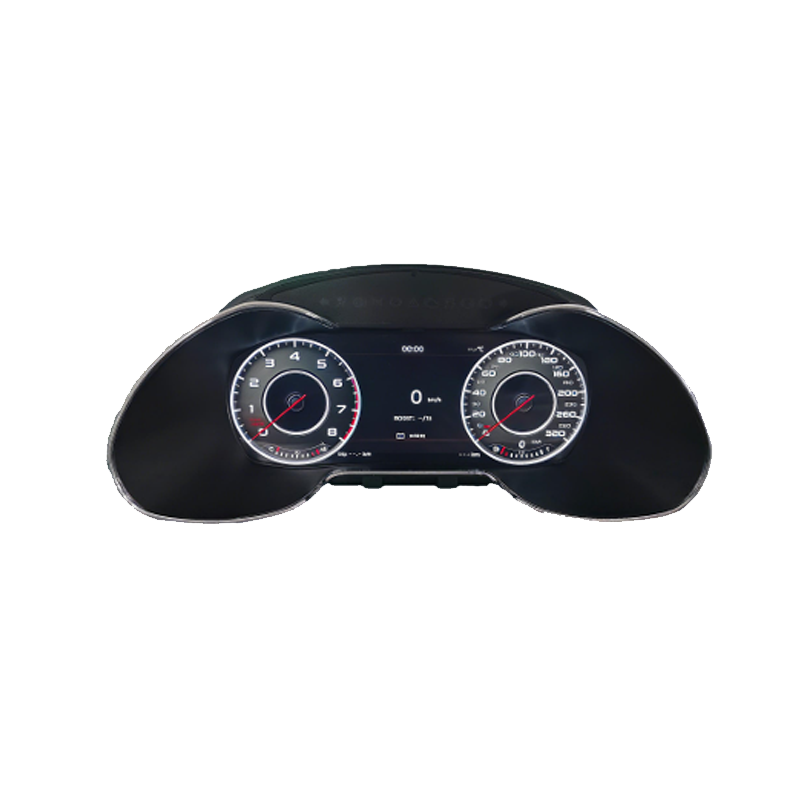
Audi Q5 Virtual Cockpit Retrofit: 2009-2017 8R Digital Cluster
Useful for Audi buyers who need the correct cluster route before asking about firmware support or update behavior.
View Audi Q5 Digital ClusterRelated Installation and Compatibility Articles

Volkswagen Tiguan Full LCD Instrument Cluster Installation Guide
For buyers who first need the physical installation and fitment logic before they move on to software maintenance.
Read Tiguan Installation Guide
How to Install a Volkswagen Tiguan MQB Digital Cluster (2017-2022)
A more platform-specific route for Tiguan MQB buyers who need the later dashboard logic explained clearly.
Read Tiguan MQB Guide
Volkswagen Lavida 2013-2019 12.3 Digital Cluster Installation Guide
Useful for buyers on the PQ-side Volkswagen route who want a model-year specific installation reference.
Read Lavida Installation GuideFAQ
Can every VW or Audi digital cluster on Ikagoo use online update?
No. Only supported builds dated after April 16, 2025 can use the online update route described here. Earlier builds should use the correct USB update path instead.
How do I know whether my cluster supports online update?
Check the version line. Open the cluster settings, locate version information, and read the date code. The date format follows month-day-year on the route covered here.
Why does the guide say to turn off phone-link on C33 clusters first?
Because it prevents route conflict. On C33 variants, the smartphone interconnection function should be disabled before the online update so the hotspot-based update route can work cleanly.
Why is the cluster not recognizing the USB update file?
Usually because the file rule is wrong. The update file name must match the assigned support file exactly. If the system expects gor.tar, then extra characters such as gor.tar (1), a wrong suffix, or a nested folder in the USB drive root can cause the cluster to ignore the package.
How long does an online update usually take?
Usually about 5 to 6 minutes. During that time, do not touch the unit and do not cut power.
How long does the USB update route usually take?
Usually around 3 minutes. During that cycle, the cluster may black out several times. That behavior is normal on this route, so do not interrupt the process.
Can I use any USB package that looks similar?
No. USB update files must match the exact cluster route. Using a package from another platform or version can create avoidable recovery problems.
What should I do after the cluster says the update is complete?
Restart in the correct order. Press any steering wheel button once to reboot the cluster, switch the car off, lock it for a few minutes, then start the vehicle again and verify normal boot behavior.








Add comment
You must be logged in to post a comment.