


VW & Audi Digital Cluster CarPlay, HDMI and Update Route Guide
VW Audi digital cluster CarPlay route HDMI and Update Guide

This How to choose the correct Volkswagen and Audi digital instrument cluster CarPlay route guide is written for buyers and owners using an Ikagoo digital instrument cluster or planning a Volkswagen or Audi digital cluster upgrade. It is based on the official Ikagoo tutorial entries behind the QR support menu and focuses on the questions buyers actually ask after installation or before purchase: which route applies to the cluster version, how maps or phone projection are displayed, and which update path should be used.
This is not a generic “all functions are the same” article. In real after-sales support, the correct answer depends on the cluster version, the connected hardware path, and whether the buyer wants built-in connectivity, an external box route, center-screen projection, phone mirroring, or system update support. That is why Ikagoo separates these functions into different support routes instead of treating them as one universal workflow. This page was reviewed against the current QR-menu support structure and edited into English by YiFu.
How to Know Which Digital Cluster Route You Need
Built-in route
If the cluster version was prepared for the built-in CarPlay / HiCar (C33) path, the support route should follow the internal connection logic instead of defaulting to an external accessory.
External box route
If the goal is phone connectivity through a separate hardware accessory, the correct route may be an external wireless box or an active CarPlay / HiCar box.
Projection route
If the goal is to project center-screen content or navigation into the digital cluster, the relevant route is the HDMI / DP projection path, not the built-in route by default.
Update route
If the cluster is already installed and the issue is version change, firmware behavior, or post-sale support, the relevant path is the online update or USB update route.
Important: model name alone is not enough. On Volkswagen and Audi digital instrument cluster systems, the correct route should be judged by the exact cluster version and hardware path, not guessed from brand or platform name only.
How to Use the Built-in CarPlay / HiCar (C33) Route
The official Ikagoo tutorial library includes a built-in CarPlay / HiCar (C33) connection route. This route is intended for cluster versions that were prepared for internal phone-link logic. It is not the same as the external box route and should not be treated as interchangeable.
C33 Operation Video
How to Use the External Wireless Box Route
The official tutorial library also includes an external wireless box route. This path is relevant when the upgrade goal is phone connectivity through a separate hardware box rather than through the built-in cluster route.
Wireless Box Connection Video
How to Use the HDMI / DP Projection Route
This is one of the most misunderstood support areas. In the official Ikagoo tutorial library, the HDMI / DP route is listed separately as the path for center-screen projection into the digital instrument cluster. This is the route that matters when the buyer wants center-screen content or navigation shown inside the cluster.
This does not mean every cluster with CarPlay uses HDMI by default. It means the projection route is its own hardware path. In practical support cases, this is exactly where buyers get confused: phone connection can be working while cluster-side map display is still unavailable because the display route was never matched. The official materials also note that some earlier versions without HDMI may require an additional HDMI board, so this should be confirmed by the actual cluster version rather than assumed from the vehicle name alone.
HDMI / DP Projection Video
How to Mirror a Phone Screen to the Digital Cluster
Phone mirroring is a separate route from built-in CarPlay, HiCar, and HDMI / DP projection. If the buyer’s goal is screen mirroring instead of the standard CarPlay or HiCar route, that should be handled as its own support path.
How to Update the Digital Cluster Online or by USB
Post-install support is part of the real ownership experience. The official Ikagoo tutorial library provides two separate update routes: online update and USB update. If the cluster is already installed and the issue is firmware, function behavior, or support-led upgrade work, use the correct update path instead of copying an unrelated installation method.
How to Solve Common CarPlay, HiCar, and Map Display Questions
Why does CarPlay connect but maps do not show inside the cluster?
Because CarPlay support and cluster-side map display are not automatically the same route. Some versions use built-in logic, some rely on an external box, and some require the HDMI / DP projection path.
Why does one version need an HDMI board but another does not?
Because earlier and later hardware routes are not always identical. The official tutorial materials already distinguish older versions without HDMI from later projection-ready routes.
Can I confirm the correct route by model name only?
No. Volkswagen and Audi buyers should confirm by cluster version, original cluster appearance, and center-screen route.
What if the cluster is already installed and I only need support?
Then the correct path may be an update route or a function route, not a new installation route. That is why Ikagoo separates connection tutorials and update tutorials.
How to Confirm Compatibility Before You Buy or Ask for Support
- Take a clear photo of the original instrument cluster.
- Take a clear photo of the current center screen or head unit if map projection or phone-link display is part of the plan.
- Tell Ikagoo exactly what you want: built-in CarPlay, external box connection, HDMI / DP projection, phone mirroring, online update, or USB update.
- Do not assume another Volkswagen or Audi owner uses the same route just because the brand is the same.
Best practice: for high-value digital cluster upgrades, the safest route is always version confirmation before payment or advanced support. That is more reliable than guessing from the car name alone.
Relevant Ikagoo Product Paths for Volkswagen and Audi Buyers
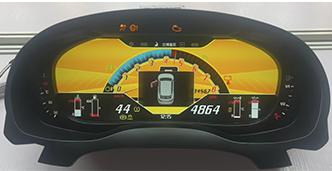
Volkswagen Digital Instrument Cluster Collection
Use this route if you are confirming Volkswagen-supported digital instrument cluster systems before matching the correct CarPlay, HDMI / DP, or update workflow.

Audi Digital Instrument Cluster Route
Use this path if you are matching Audi cluster hardware and want to confirm whether the built-in route, box route, projection route, or update route applies.
Frequently Asked Questions
Is this guide only for one Volkswagen or Audi model?
No.It is written as a support guide for Volkswagen and Audi digital instrument cluster routes, not for one single vehicle.
Does CarPlay support automatically mean maps will display inside the cluster?
No.Map display inside the cluster depends on the exact route in use, such as built-in C33, an external box, or the HDMI / DP projection path.
What is the HDMI / DP route for?
It is for center-screen projection into the cluster.This is the route to check when the goal is showing center-screen or navigation content inside the digital instrument cluster.
Do older versions always support HDMI?
Not always.The official tutorial materials note that some earlier versions without HDMI may require an additional HDMI board.
What should I send Ikagoo before buying?
Send the original cluster photo and the current center-screen photo.This is the fastest way for Ikagoo to judge whether your route should follow built-in C33, an external box, HDMI / DP projection, phone mirroring, or an update workflow. If your goal includes maps, CarPlay, HiCar, or projection inside the cluster, both photos are important.
What if my cluster is already installed and I only need support?
Use the matching support route first.That may be the online update path, the USB update path, or the route that matches the current connectivity hardware. If the issue needs deeper after-sales diagnosis, Ikagoo can continue the case through FixMyDash for software support, function checks, and version-specific troubleshooting.








Add comment