


Lcd Instrument Cluster Upgrade Guide
LCD Instrument Cluster Upgrade for Audi & Volkswagen — Virtual Cockpit Explained
In automotive electronics, engineering reliability multiplied by purposeful design drives user delight—and raises tolerance for early-stage imperfections. From classic analog needles to hybrid dials and today’s full LCD dashboards, the LCD Instrument Cluster Upgrade fuses electronic architecture with interface logic and brings a meaningful leap in in-car information delivery.
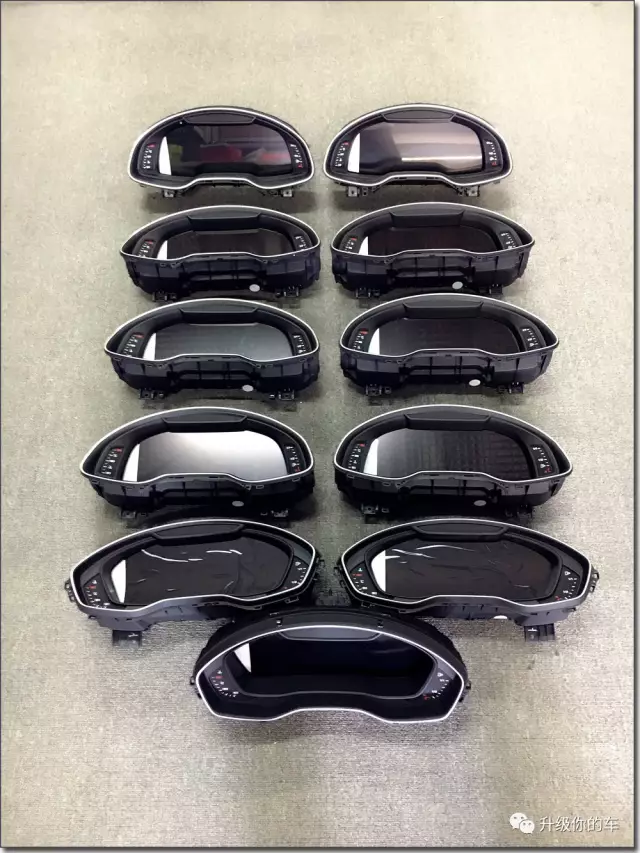
Why Full LCD Clusters Matter
A full LCD dashboard consolidates speed, RPM, warnings, navigation, media, and ADAS prompts into a single high-legibility surface. This Digital Dashboard for VW and Audi platforms improves scan efficiency by minimizing eye travel between the center stack and the driver display. With themeable layouts and context-aware zones, it prioritizes what you must see while driving and demotes secondary content until safe to consume.
- Integrated information with clear prioritization.
- Theme & zone control for different driving contexts.
- Deep coupling with Audi’s Virtual Cockpit philosophy: the cluster becomes the primary MMI Navigation Display.
Fitment Scope (Verify Year/Region)
Coverage focuses on target Audi & Volkswagen platforms. Always verify year/trim/region before purchase or installation.
- Audi Q7 (new generation)
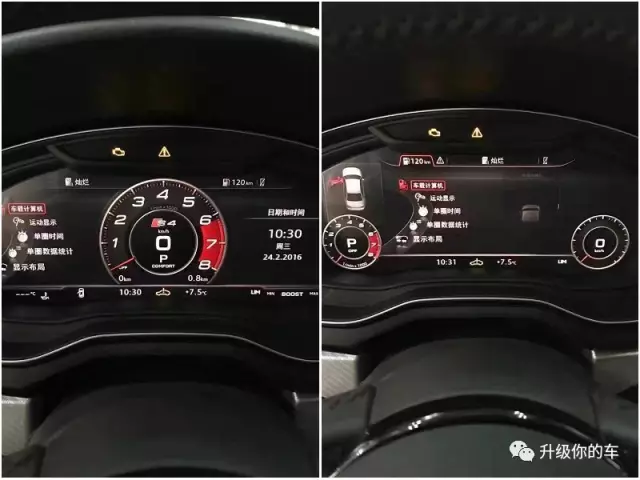
- Audi A4 (new generation) — part of the A3/A4 LCD Instrument family
- Audi A3 (new generation)
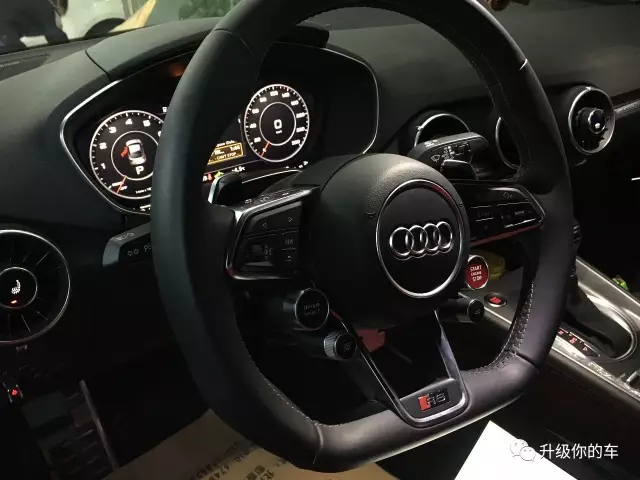
- Audi TT with TTS-style upgrade theme
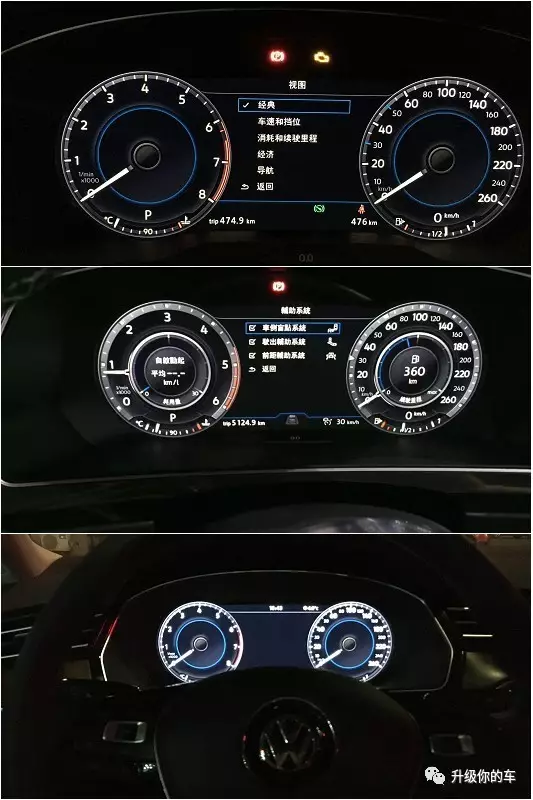
- Volkswagen Tiguan (import) / Tiguan L Digital Cluster (China)
- Volkswagen Magotan B8 / Passat B8 (incl. Variant/Alltrack) — Magotan B8 LCD Cluster
Have VIN + year + region ready; gateway/BCM behavior and CAN mapping can differ across EU/US/ME/CN variants.
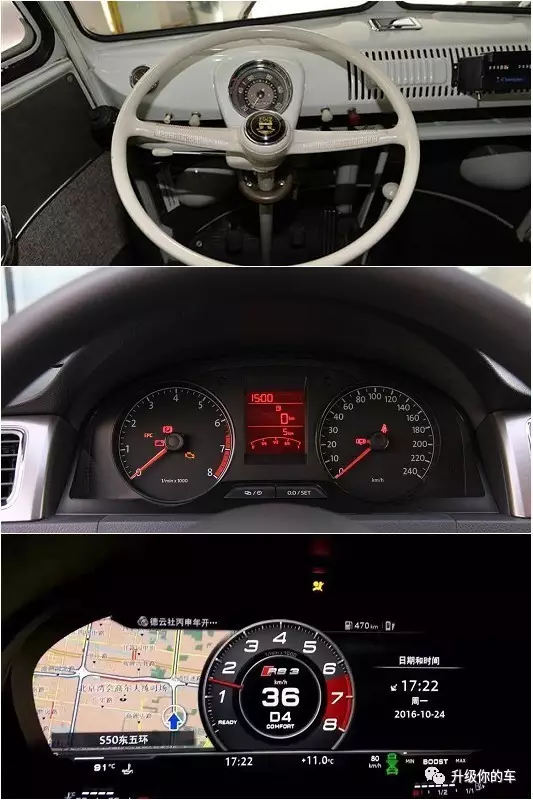
What Changes Versus Analog Gauges
Traditional pointer dials are replaced by a 12.3-inch TFT Cluster (typical resolution up to 1440×540). An Irregular Bezel Design sharpens aesthetics and clarifies visual zoning. Within Audi’s Virtual Cockpit, the cluster is not just a satellite to the center stack; it becomes the main surface for map guidance, media status, call prompts, and vehicle data.
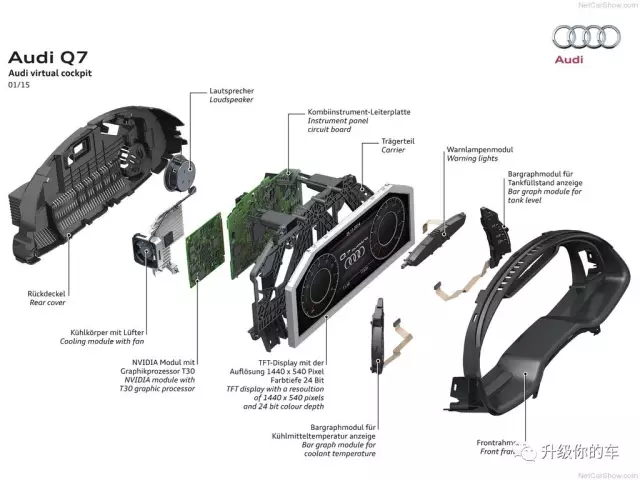
Architecture & Performance
- Display module: 12.3-inch TFT LCD with anti-glare and night-friendly dimming.
- Core board: CAN parsing, indicator logic, audio beeps, and graphic pipeline.
- Thermal design: heat spreader and quiet fan (model-dependent) for long-trip stability.
- Graphics SoC: NVIDIA Tegra 3 Graphics class for real-time rendering and smooth transitions.
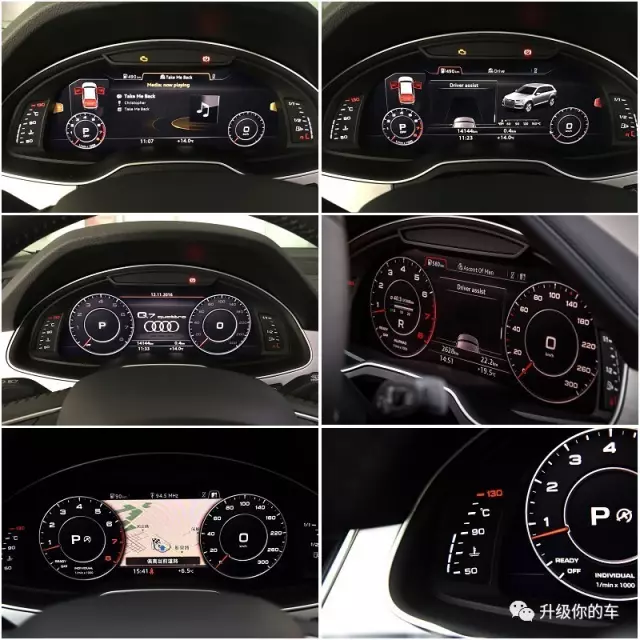
UX & Safety Logic While Driving
Visual richness must not compromise attention. Driving-state rules enforce a conservative Cluster UI Safety Logic: some entertainment or advanced settings are limited when the vehicle is moving; menus expose context-relevant actions to minimize repetitive selection and misuse.
Gallery
Installation & Initial Calibration
Most platforms aim for plug-and-play. After first power-on, refine protocol/theme/units/language if needed:
- Power strategy: ignition ON and stable supply; use a ≥10A maintainer if idling is not possible.
- CAN protocol: verify steering-wheel controls, TPMS, reverse overlay, and indicator icons.
- Region specifics: gateway and BCM behavior can vary; match exact variant to avoid false warnings.
Software Updates — USB & OTA
1) USB Offline Update (gor.tar)
- File name must be exactly
gor.tar. If you receivegor.tar.bz2, extract it first to getgor.tar. - If your OS auto-renamed to
gor.tar(1), remove brackets/suffix—keep onlygor.tar. - Copy to USB root (FAT32), insert into the harness upgrade port, then power ON. Typical time: 3–6 minutes with several black-screen phases.
- When prompted, remove USB → press any steering-wheel button to reboot → lock the car ~3 minutes → restart and verify version info.
- Do not cross-flash between PO and MOB platforms even if file names match.
2) Online OTA Update (Wi-Fi / Phone Hotspot)
- OTA requires APP build date ≥ Apr 16, 2025 (Month-Day-Year). Check under Settings → About / Version Info.
- Phone hotspot quick setup: SSID
1234, password12345678(2.4 GHz). Keep the phone unlocked and within 1–2 m. - Go to Settings → System → Online/OTA Update → Check → Download → Install.
- Do not operate the cluster or cut power for 5–6 minutes. After “Update Completed,” press any steering-wheel button to reboot.
- Lock the car for ~3 minutes, restart, then confirm versions changed. If no update is offered, your unit may already be current or rollout is region-staged.
Troubleshooting & FAQs
No update available
Rollout may be region-staged, or your unit is already current. If APP date is earlier than the threshold, use the USB method instead.
Download stuck
Keep the hotspot awake; move the phone closer; retry on a stable 2.4 GHz AP.
Black screen after install
Some phases are silent—maintain power for 10–15 minutes. If unresolved, re-flash with the correct package; contact support with VIN/model/region and a short video.
Settings lost after update
Major releases can reset defaults. Re-apply CAN protocol, theme, units, and language.
Parts & Upgrade Inquiry
For upgrades or wholesale/retail of genuine parts for Volkswagen / Audi / Škoda, contact us with VIN, model year, and region. We will confirm compatibility, CAN mapping, and the correct firmware branch for your platform.








Add comment
You must be logged in to post a comment.