
















How to Install an Audi A6 C7 Digital Instrument Cluster (2012-2018)
Audi A6 C7 Digital Instrument Cluster Installation Guide (2012–2018)
This procedure is built around the Audi A6 C7 installation footage and the supplied internal-board references. Follow the work in order: document the original display, complete the required pre-install checks, remove the original cluster, transfer the retained internal parts, reconnect the new display, and test it before closing the trim.
Scope: This page documents the Audi A6 C7 installation route shown in the supplied footage. It does not claim that every Audi A7 or every C7 dashboard follows the identical trim-removal procedure.
Prepare the Car and the Workbench First
Do not begin by pulling trim. Prepare the vehicle, tools and clean bench area before the original cluster is removed.
Vehicle preparation
- Confirm the vehicle is the Audi A6 C7 route shown in the installation footage.
- Photograph the dashboard and original instrument cluster before any removal.
- Set the steering wheel position to provide access to the cluster surround.
- Protect visible trim surfaces before using removal tools.
Tools and bench
- Use non-marring trim tools suitable for interior clips.
- Prepare a clean padded bench before the cluster leaves the car.
- Keep screws and retained parts organised during disassembly.
- Keep the original cluster after installation; do not discard it.
Electronic protection
- Discharge static before touching exposed electronic boards.
- Handle boards by their edges instead of touching components.
- Never use the LCD face as a pressure point during assembly.
- Check retained internal parts and connectors before closing the housing.
Do not improvise: The supplied material shows an internal transfer stage. If the installer cannot safely handle dashboard trim and exposed electronics, the bench-transfer stage should be carried out by an experienced automotive electronics installer.
Record the Original Display and Required Settings
This is the first installation step. While the original cluster is still connected and visible, record what the vehicle currently shows. Without this baseline, a pre-existing warning can easily be mistaken for an installation fault.
Complete the baseline record before removing trim
- Power the original cluster for inspection and take a clear front-view photo.
- Record the displayed mileage, fuel display and any visible warning or reminder message.
- Enter the available settings menu and record language, unit and warning-related settings where applicable to the installed version.
- Operate the original menu-control input and confirm it responds before the cluster is removed.
- Save these photos and notes for the final comparison after installation.
Important limitation: The supplied material includes a warning/menu-setting reference video, but it does not establish that every shipped software version uses an identical menu path. Use the reference only where it matches the device being installed.
 ▶ View Reference
Warning and Menu Settings Reference
Review the operation shown around 01:24 before disassembly. Record the original vehicle condition first; use the same items later when checking the installed LCD cluster.
Watch the Full A6 C7 Installation Video Before Starting
The written procedure below follows this video sequence. Watch it fully once before beginning the physical installation, then return to the relevant step while working.
The video is the primary physical-installation reference. The frame images below are placed inside the matching step rather than repeated as a separate gallery.
Follow These Steps in Order
Each step below includes only the visual evidence needed for that operation. Complete one stage before moving to the next.
Release the lower cluster trim
- Confirm the baseline record from Step 0 has been saved.
- Adjust the steering wheel for working space around the cluster surround.
- Start at the lower-left cluster and steering-column-side trim area shown in the video.
- Release the trim progressively; do not bend or force the whole panel at once.

Open the trim path required for cluster removal
- Continue releasing the trim around the cluster without over-stressing the clips.
- Open the long center vent / dashboard trim section shown in the footage.
- Confirm the cluster mounting area is exposed before trying to pull the original unit forward.


Remove the original instrument cluster
- Pull the original cluster forward only after the access trim is released.
- Support the cluster by hand while reaching the rear connection.
- Disconnect the rear connector carefully; do not let the unit hang from the harness.
- Move the removed cluster directly to the padded workbench.

Open the original housing on the bench
- Place the original cluster face-up on the clean padded surface.
- Keep clips and screws organised as the housing is opened.
- Do not touch board components directly and do not apply force to the lens or LCD area.
- Before transferring anything, inspect which original components must be retained.
Static protection: The bench stage exposes sensitive electronics. Discharge static and handle exposed boards only by their edges.

Transfer the required internal parts and retain the buzzer path
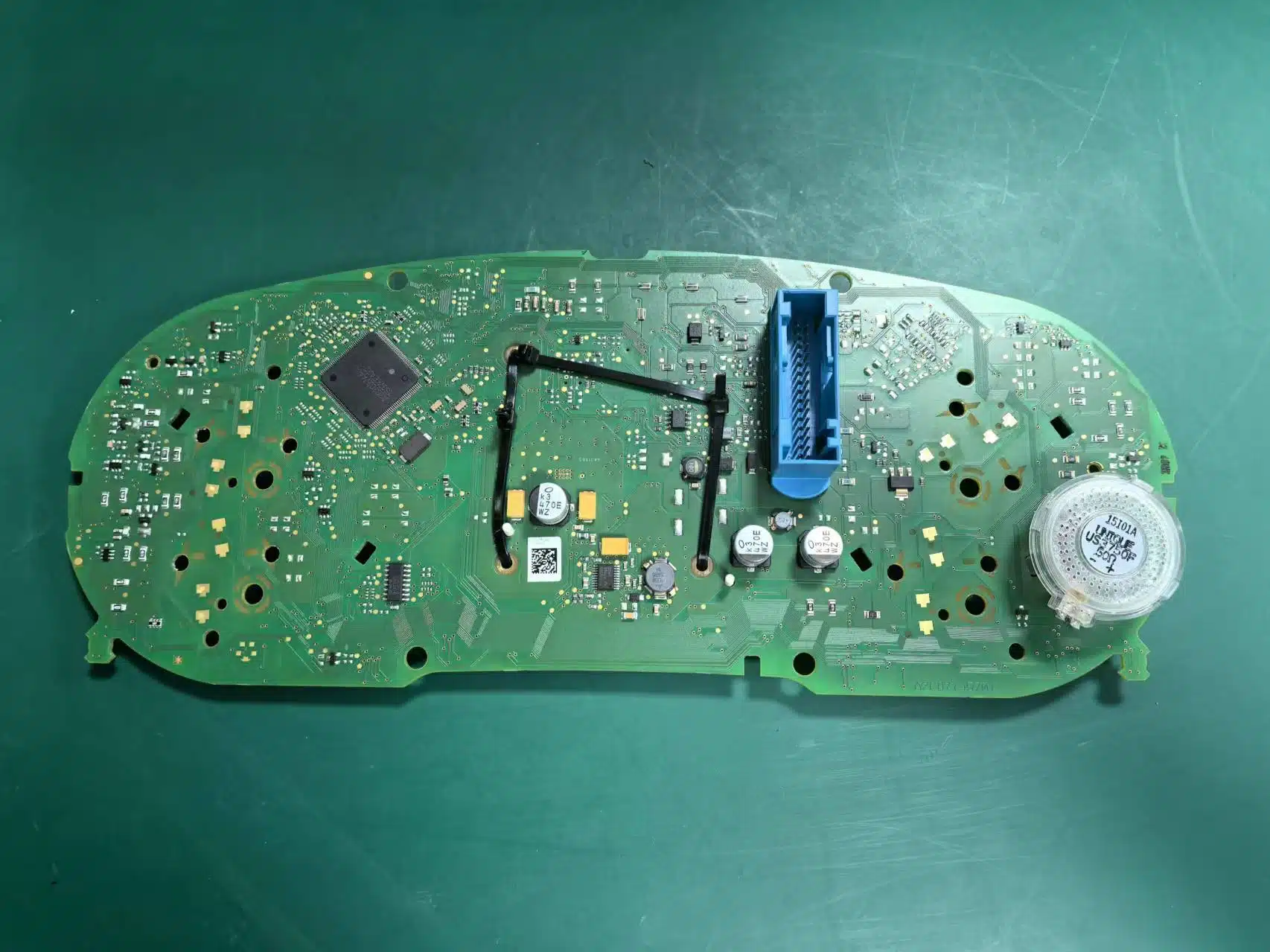
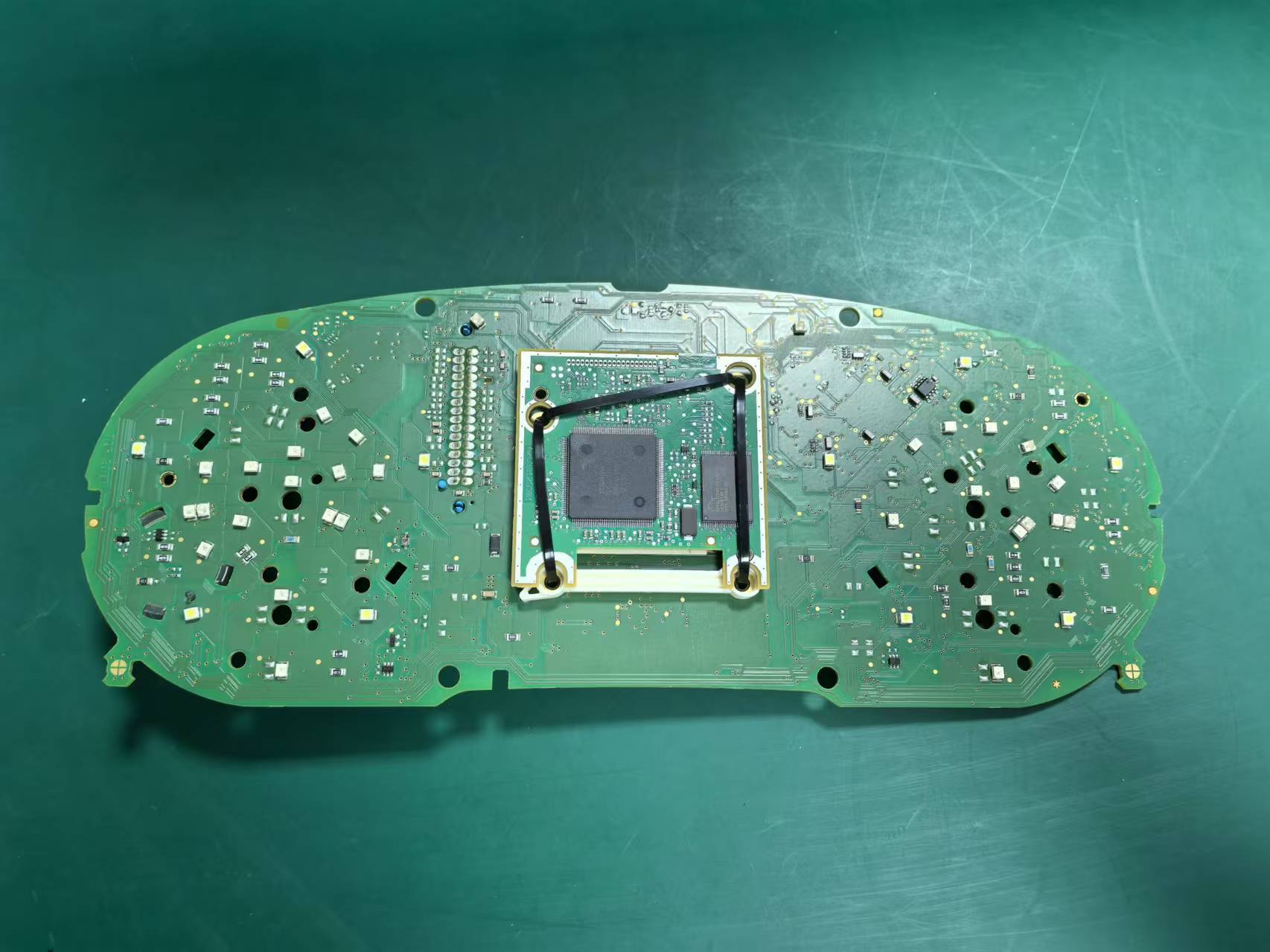
This is the key technical stage in the supplied material. Some original cluster assemblies include a small retained board behind the original display area. Where that board is present, it must be installed correctly into the new LCD cluster structure. The original buzzer / speaker-related path must also remain correctly retained.
- Identify the retained board and its connector position before moving components.
- Transfer only the required original parts into the new LCD structure.
- Check that connectors are seated flat and are not trapped by the housing.
- Do not omit the original buzzer-related section during the transfer.
- If vehicle information or warning behaviour is abnormal after installation, recheck this stage before assuming the LCD unit is defective.



 ▶ Reference
Auxiliary Board Reference
See the board handling point around 02:43.
 ▶ Reference
Bench Transfer Reference
See internal handling around 04:32.
Close the LCD cluster housing on the bench
- Check board placement, connector seating and buzzer retention one last time.
- Align the LCD cluster housing evenly before fastening or clipping it closed.
- Do not force misaligned parts and do not press directly on the screen surface.

Reconnect the LCD cluster and test before closing trim
- Reconnect the assembled digital cluster through the original vehicle connection route.
- Position it in the dashboard, but do not fully close all trim pieces yet.
- Power on and check that the display starts normally.
- Proceed to the final comparison only after the first-boot result is stable.

Compare the Installed Cluster with the Original Record
Do not end the job at the boot screen. Use the photos and notes from Step 0 to check the installed display while the trim is still easy to reopen.

Required final checks
- Compare warning lights and messages with the original photos.
- Verify available vehicle information displays normally.
- Confirm menu-control response and intended language / unit settings where supported.
- Inspect the display for lines, dead areas or pressure marks.
- Confirm the cluster and trim sit evenly without force.
- Only then close the dashboard trim completely.
Control check reference


Stop and recheck if any of these occur
- The LCD cluster does not start normally.
- Warning behaviour differs from the documented original state.
- Expected vehicle information is missing.
- Menu operation fails or becomes unresponsive.
- The trim cannot sit flush without force.
 ▶ Reference
Display and Data Check
Use as a post-install display review reference.
 ▶ Reference
Indicator and Light Check
Use as a post-install indicator-behaviour reference.
Mileage and vehicle-data boundary: This procedure does not provide instructions for changing mileage or modifying original vehicle data. Record the original display, fit the cluster correctly, and verify the displayed result after installation.
Recheck the Stage Related to the Symptom
| Symptom after fitting | Recheck first | Do not assume |
|---|---|---|
| Information missing from the new display | Internal retained-board transfer, connector seating and the original baseline record. | Do not immediately conclude that the LCD panel is defective. |
| Warning behaviour differs from expected | Original pre-install warning photos and the buzzer-related retained path. | Do not label a pre-existing warning as a new installation failure. |
| Menu control does not respond | Control response recorded before removal, connector seating and installed menu operation. | Do not close the trim until operation has been checked. |
| Housing or trim does not sit flush | Housing alignment, trapped wiring and clip positions. | Do not force the trim back into position. |
| Software update is requested after successful fitting | Use the supported update/support route below. | Do not treat software service as hardware repair. |
Software Update and Product Support Routes
Use these links only after the physical installation route and first-boot checks are clear. Hardware purchasing and paid software support are separate services.
Update Instructions for Supported iKagoo Units
For a supported iKagoo Volkswagen or Audi digital cluster that needs the published online or USB update procedure, begin with the iKagoo update guide.
View Update GuidePaid Software Package Support from FixMyDash
For a supported Volkswagen or Audi digital cluster that needs software-package assistance and compatibility review, purchase the FixMyDash upgrade package with a selected 1-year or 2-year support plan.
Buy Upgrade PackageFixMyDash boundary: The upgrade package is for supported software-package assistance and compatibility review. It does not promise repair of display damage, wiring faults, connector faults, incorrect installation, communication faults or unrelated vehicle problems.
Need the Digital Cluster Shown in This Installation Route?
After reviewing the procedure, customers who need the matching hardware can review the iKagoo Audi A6 / A7 C7 digital cluster product page. Confirm the original cluster appearance and vehicle fitment before ordering.

Audi A6 / A7 C7 12.3-inch Digital Instrument Cluster
This tutorial documents the Audi A6 C7 installation route shown in the supplied footage. Audi A7 owners should confirm fitment before ordering because removal and trim details may differ.
Open Product PageInstallation Questions
What must be recorded before the original cluster is removed?
Record the visible mileage, existing warning lights or prompts, available vehicle-information display, menu-control response and any relevant language or unit setting visible on the original cluster.
Does Plug-and-Play mean no disassembly is required?
No. It means the retrofit uses the original vehicle connection route without destructive cutting of the factory harness. Trim removal, original-cluster removal, internal transfer and final testing are still part of this installation.
Why are the internal board and buzzer checks inside Step 5?
Because they are part of the bench-transfer operation, not general product information. They must be checked after the original cluster is opened and before the new housing is closed.
When should the dashboard trim be fully reinstalled?
Only after the LCD cluster powers on normally, available vehicle information and menu response have been checked, and the result has been compared with the pre-install record.
Where can I obtain paid software upgrade support?
For supported Volkswagen or Audi digital cluster systems, use the FixMyDash Volkswagen Audi Digital Cluster Upgrade Package. It is a software-package support route, not a hardware repair guarantee.
Installation disclaimer: This page is a vehicle-specific installation reference based on supplied installation material. Dashboard removal and instrument-cluster electronics require appropriate tools and care. Use a qualified installer when the required work is outside your experience.





Add comment